Top menu
The top menu allows you find all the screens in MyQPT
From left to right you can access:
- the home / welcome screen
- your profiles details
- the finances section
- your statements
- the frequently asked questions section
- search for quick access to help
- your name, which allows you to sign out of MyQPT.

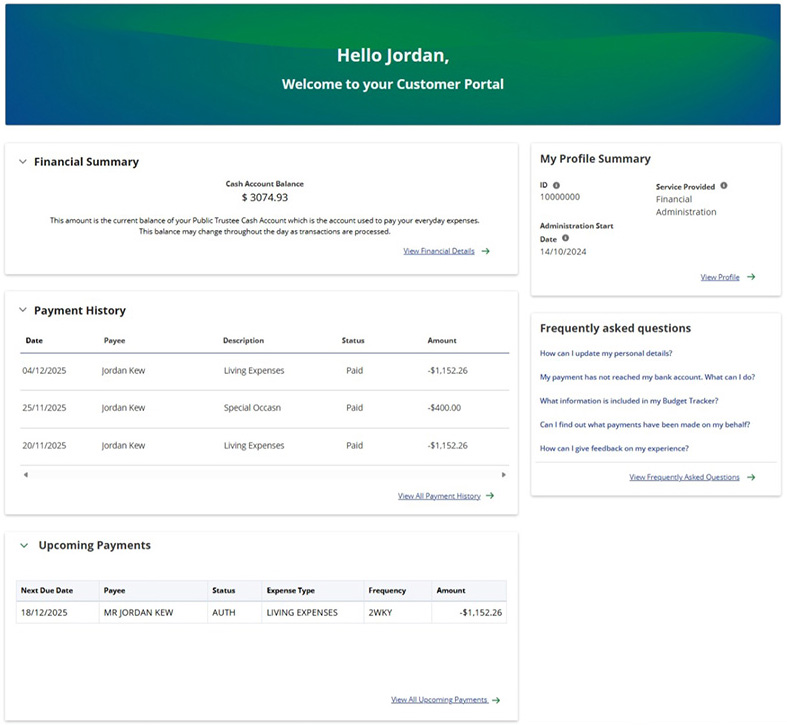
Welcome / home screen
On the welcome screen you can get a financial summary including:
- your cash account balance
- your upcoming and recent payments
- a summary of your profile details
- answers to common questions in the frequently asked questions
- a way to contact us if you need help.
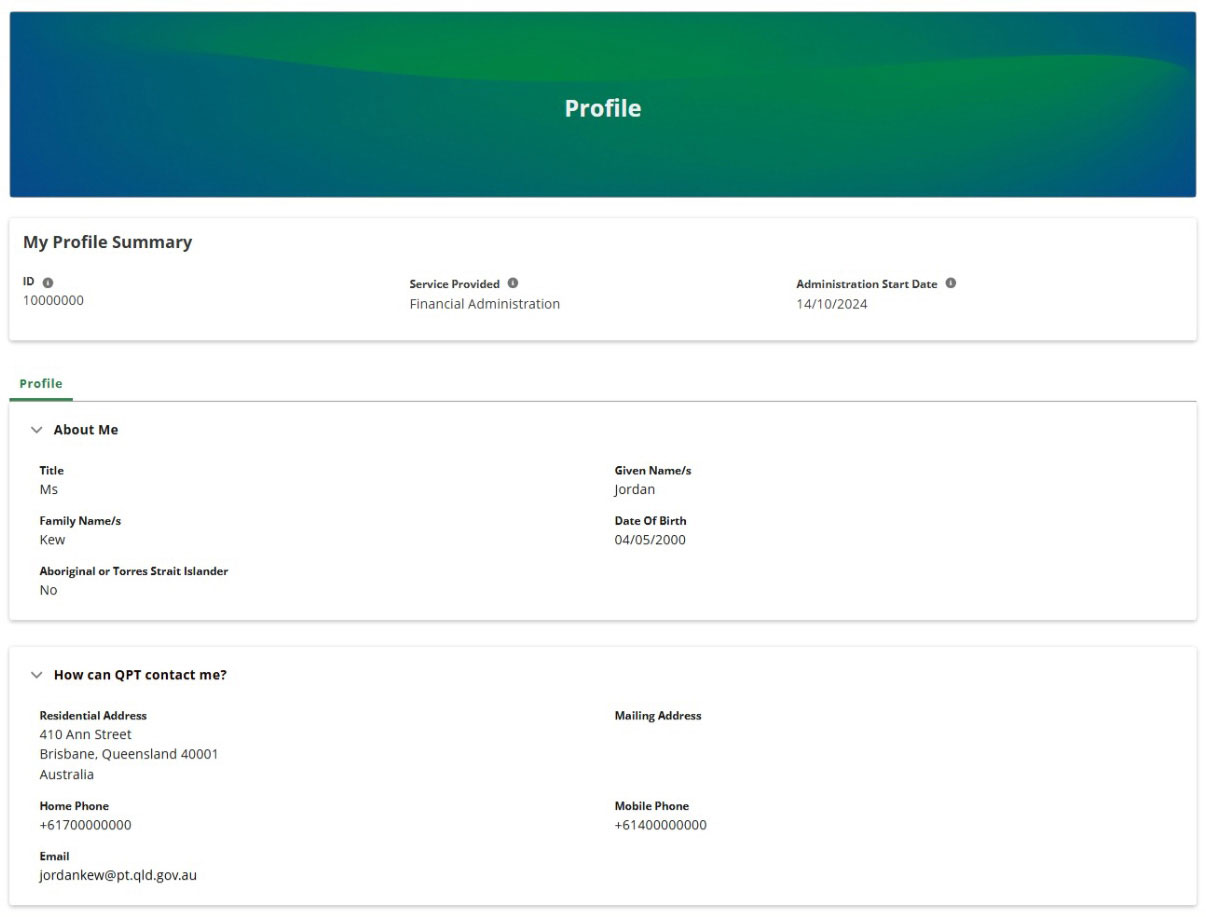
Your profile
On the profile screen you can find a detailed, read-only summary of your personal information recorded by QPT.
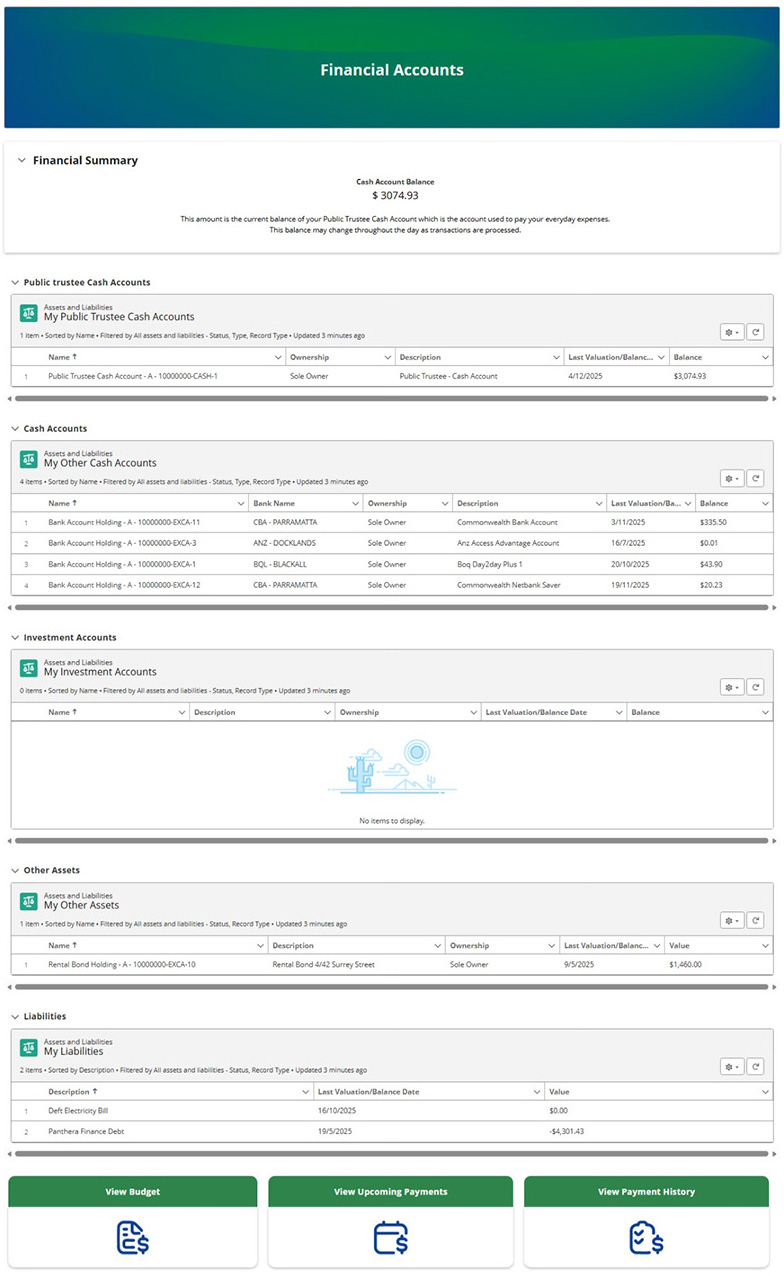
Financial summary
Your financial accounts are grouped into:
- Public Trustee cash accounts
- Other cash accounts
- Investment accounts
- Other assets
- Liabilities
You can also view details of any insurance policies held with QPT.
Each section shows up to 50 records just scroll to see more.
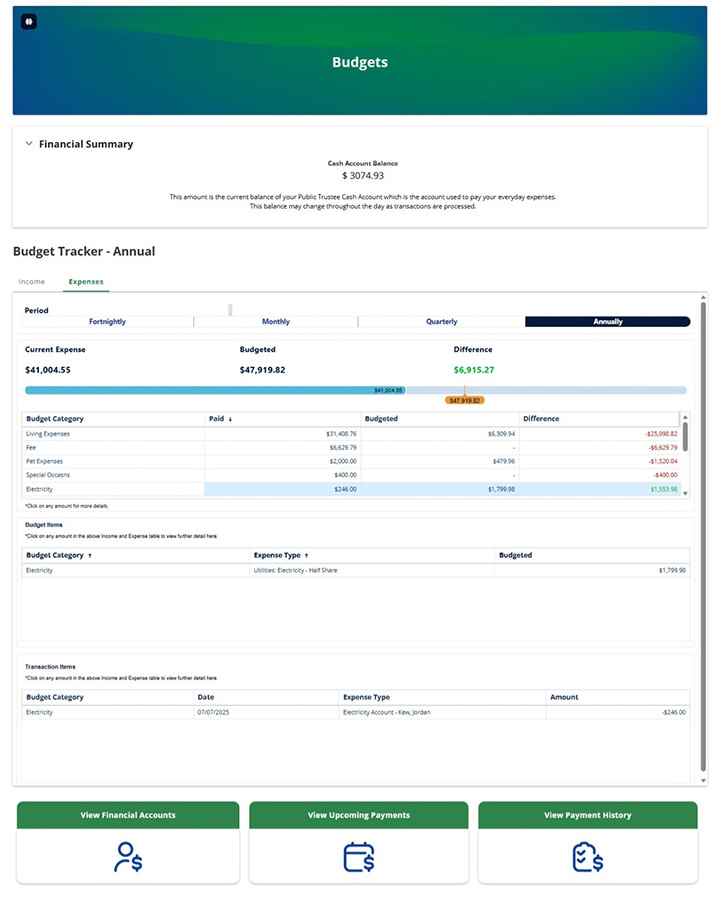
Budget summary
Your budget summary displays your cash account balance.
It also displays your annual income and expenses. This is how much you’ve received or paid, against what was budgeted.
It’s designed with easy-to-read tables to help you stay on top of your finances quickly and easily.
Payments and history
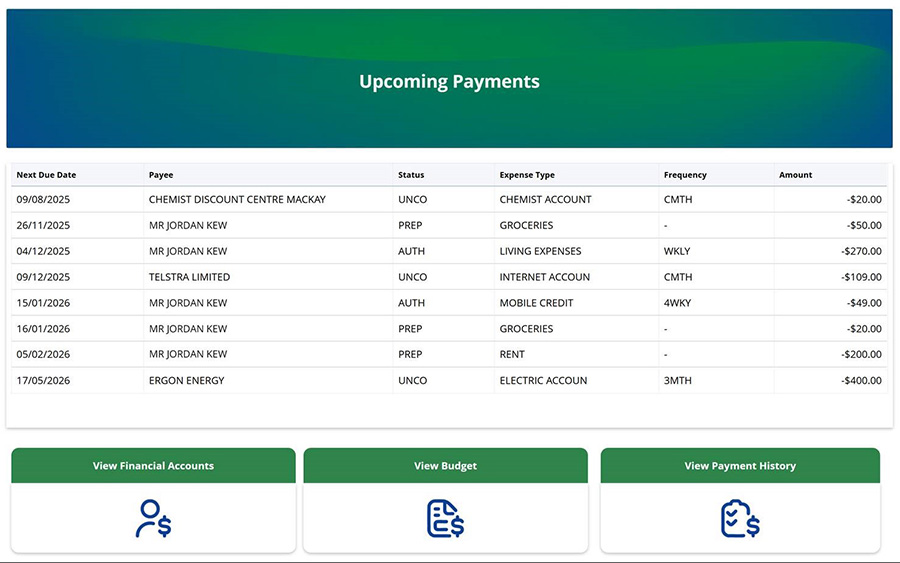
Upcoming payments displays payments coming up, including:
- what payments are scheduled
- how often they happen.
- their current status and amount.
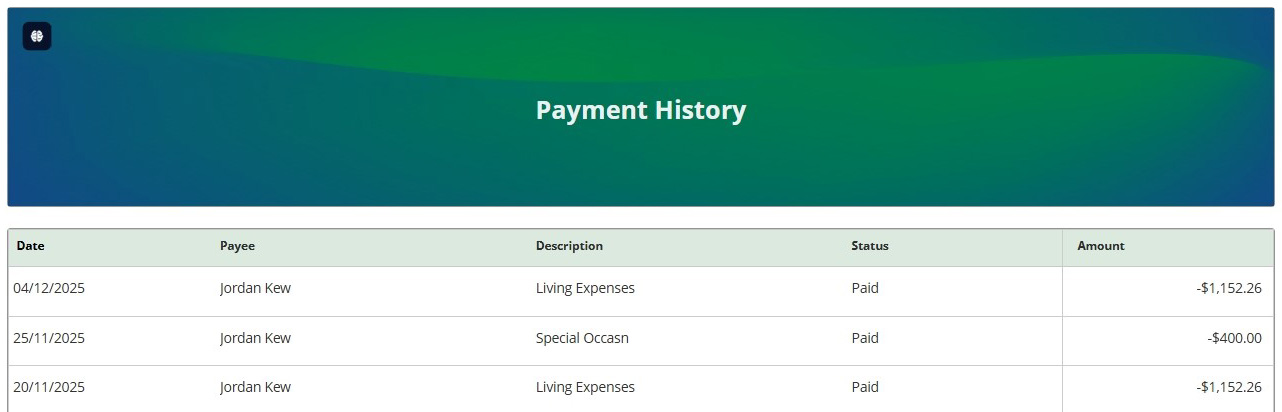
In the payment history tab, you can check:
- what’s already been paid
- when it was paid
- what each payment was for.
Statements
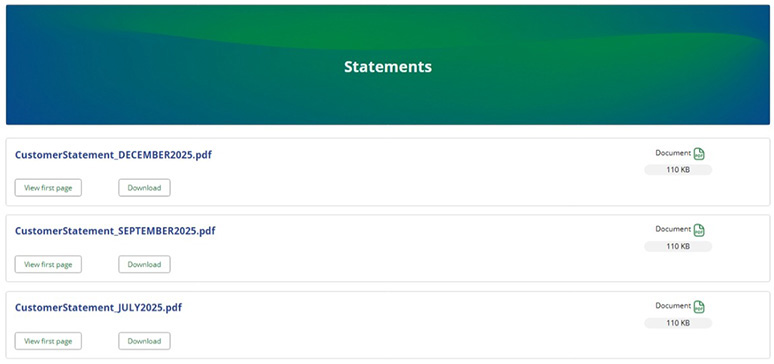
You can view your latest statements by either:
- previewing the first page
- downloading the full PDF.
Only new statements will appear here. Some customers may not see any until their next scheduled statement update.
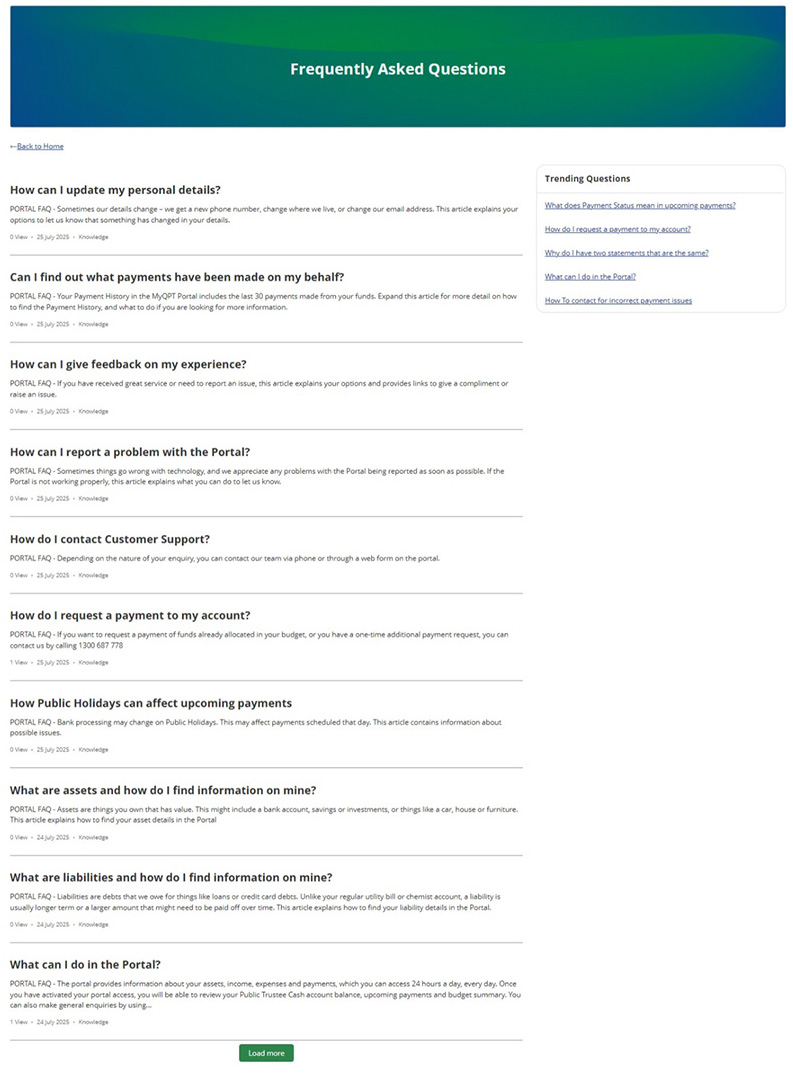
Frequently asked questions
To get help using MyQPT, view our frequently asked questions to:
- browse popular topics like requesting payments or checking your balance
- see what questions are trending or popular with other customers
- get quick tips to help manage your account.
Either go straight to the Frequently asked questions section or use the search bar at the top of MyQPT.
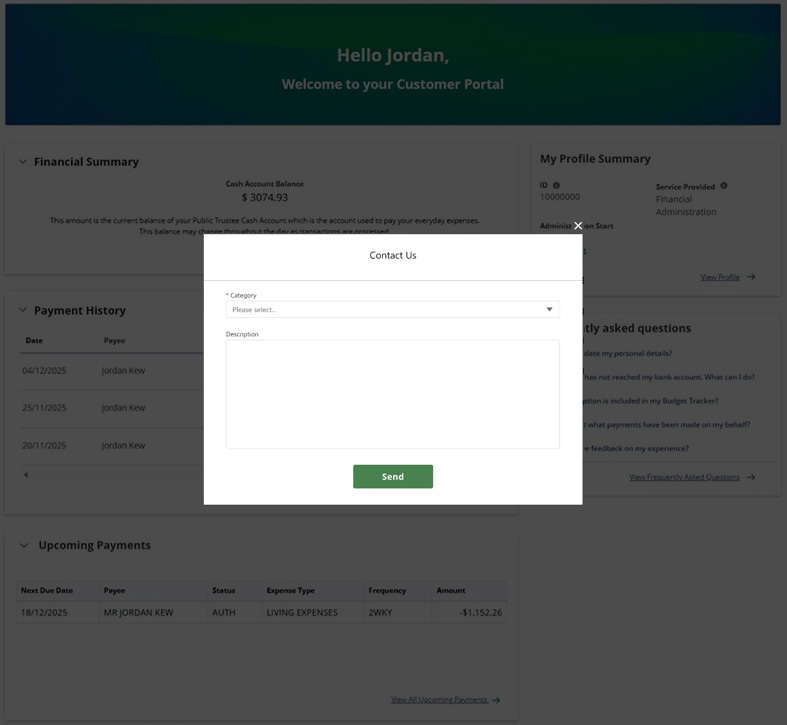
Contact us
If you have a non-urgent request, you can use the Contact us button in the footer area of MyQPT, to submit it directly through the portal.
Just choose a category that best fits your enquiry and add your message.
Your request will be sent to our customer support team who will review and respond.